
Google Slides
Connect to Google Slides to create, read, and modify presentations programmatically.
Connect to Google Slides to create, read, and modify presentations programmatically.

Supports authentication: OAuth 2.0
Configure redirect URL
Section titled “Configure redirect URL”-
Open the Scalekit dashboard
Section titled “Open the Scalekit dashboard”In Scalekit dashboard, go to Agent Auth → Create Connection.
-
Create a Google Slides connection
Section titled “Create a Google Slides connection”Find Google Slides from the list of providers and click Create.
-
Copy the redirect URI
Section titled “Copy the redirect URI”Click Use your own credentials and copy the redirect URI — it will look like
https://{your-env-url}/sso/v1/oauth/{connection_id}/callback.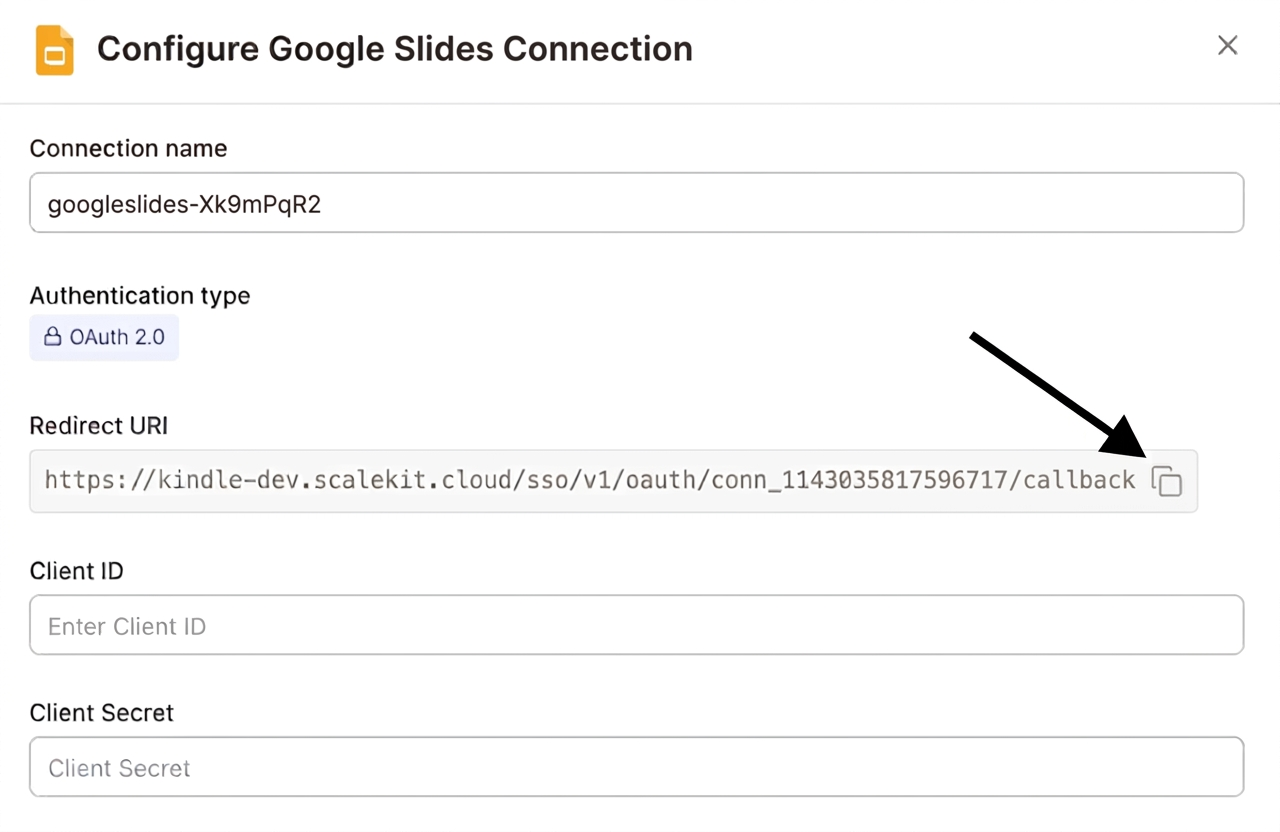
-
Open Google Cloud Console
Section titled “Open Google Cloud Console”Navigate to Google Cloud Console’s APIs & Services > Credentials
-
Create an OAuth client ID
Section titled “Create an OAuth client ID”Select + Create Credentials, then OAuth client ID
-
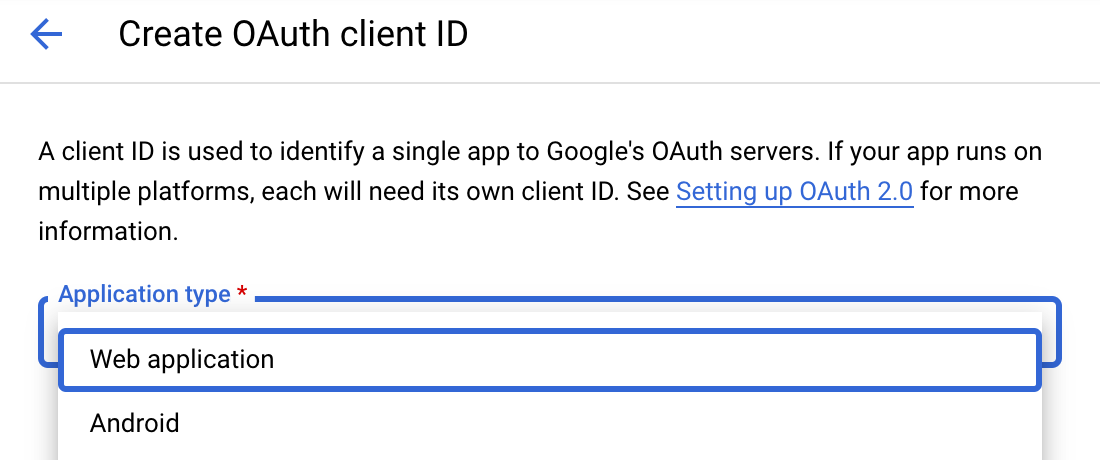
Select web application type
Section titled “Select web application type”Choose Web application from the Application type menu
-
Add the redirect URI
Section titled “Add the redirect URI”Under Authorized redirect URIs, click + Add URI, paste the redirect URI, and select Create.
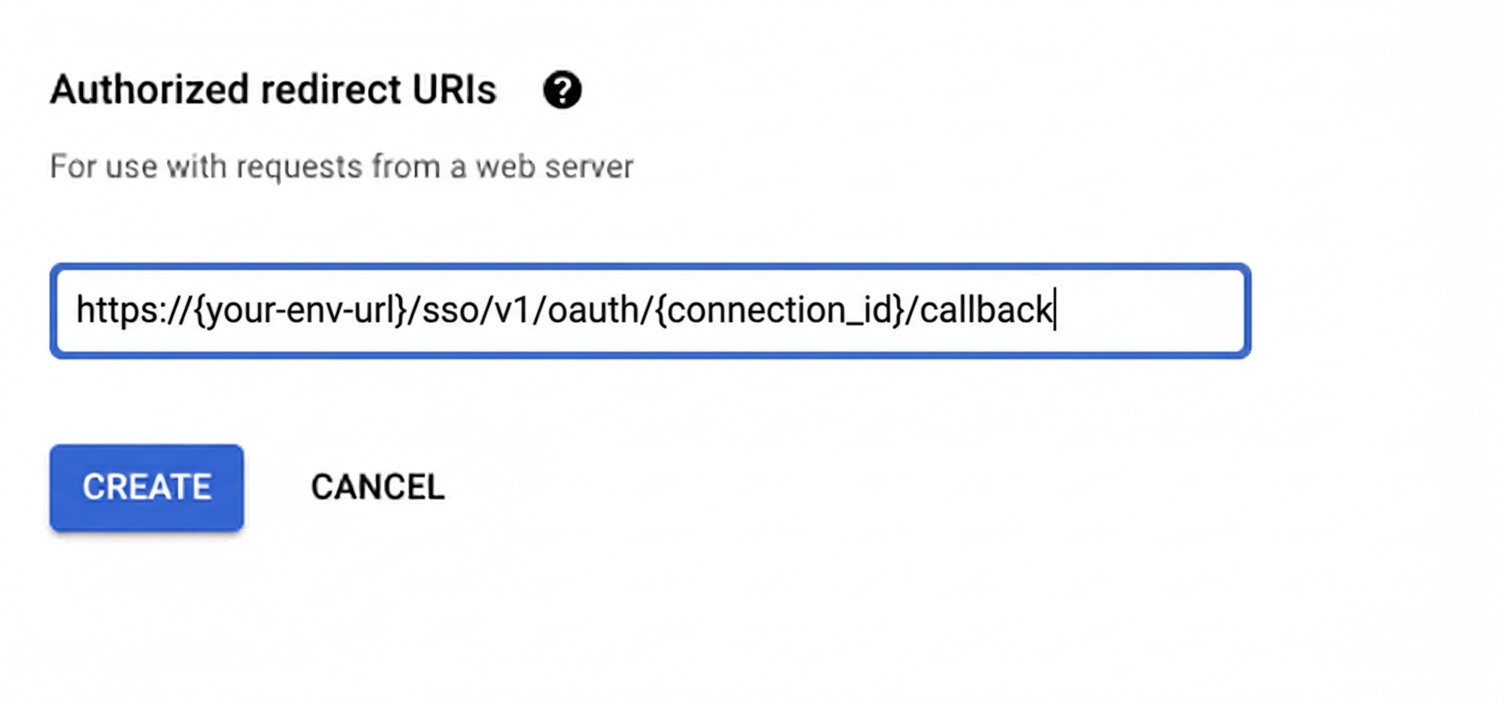
Google provides your Client ID and Client Secret credentials.
Enable Google Slides API
Section titled “Enable Google Slides API”-
Open the API Library
Section titled “Open the API Library”In Google Cloud Console, go to APIs & Services > Library
-
Search for the Google Slides API
Section titled “Search for the Google Slides API”Search for “Google Slides” in the API Library
-
Select the Google Slides API
Section titled “Select the Google Slides API”Select Google Slides API
-
Enable the API
Section titled “Enable the API”Press the blue Enable button
Add credentials
Section titled “Add credentials”-
Open your connection settings
Section titled “Open your connection settings”In Scalekit dashboard, go to Agent Auth → Connections and open the connection you created.
-
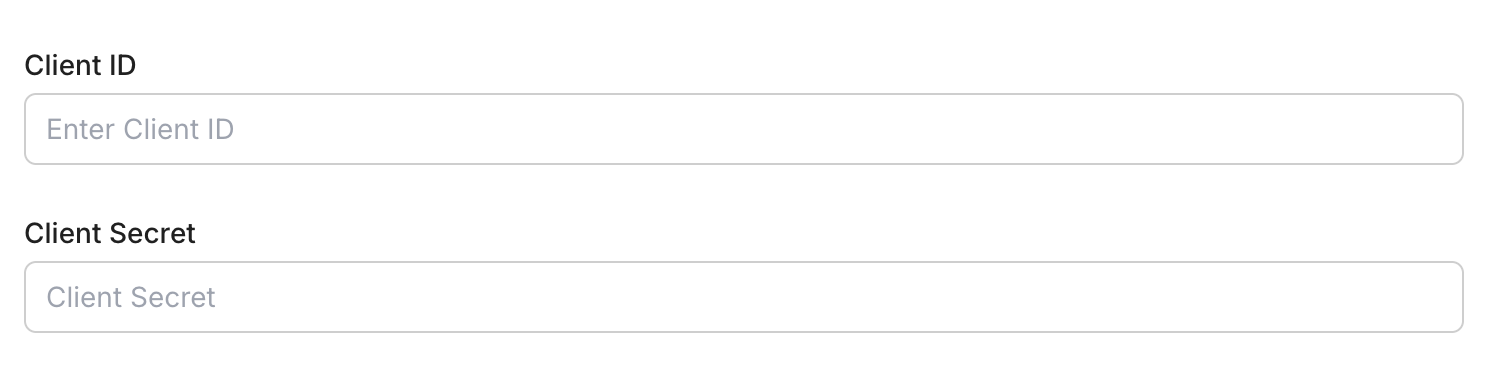
Enter your credentials
Section titled “Enter your credentials”Enter your credentials:
- Client ID (from above)
- Client Secret (from above)
- Permissions (scopes — see Google API Scopes reference)
-
Save the connection
Section titled “Save the connection”Click Save
Connect a user’s Google Slides account and make API calls on their behalf — Scalekit handles OAuth and token management automatically.
import scalekit.client, osfrom dotenv import load_dotenvload_dotenv()
connection_name = "google_slides" # get your connection name from connection configurationsidentifier = "user_123" # your unique user identifier
# Get your credentials from app.scalekit.com → Developers → Settings → API Credentialsscalekit_client = scalekit.client.ScalekitClient( client_id=os.getenv("SCALEKIT_CLIENT_ID"), client_secret=os.getenv("SCALEKIT_CLIENT_SECRET"), env_url=os.getenv("SCALEKIT_ENV_URL"),)actions = scalekit_client.actions
# Authenticate the userlink_response = actions.get_authorization_link( connection_name=connection_name, identifier=identifier)# present this link to your user for authorization, or click it yourself for testingprint("🔗 Authorize Google Slides:", link_response.link)input("Press Enter after authorizing...")
# Make a request via Scalekit proxyresult = actions.request( connection_name=connection_name, identifier=identifier, path="/v1/presentations", method="GET")print(result)Tool list
Section titled “Tool list”googleslides_create_presentation
Section titled “googleslides_create_presentation”Create a new Google Slides presentation with an optional title.
| Name | Type | Required | Description |
|---|---|---|---|
schema_version | string | No | Optional schema version to use for tool execution |
title | string | No | Title of the new presentation |
tool_version | string | No | Optional tool version to use for execution |
googleslides_read_presentation
Section titled “googleslides_read_presentation”Read the complete structure and content of a Google Slides presentation including slides, text, images, shapes, and metadata.
| Name | Type | Required | Description |
|---|---|---|---|
fields | string | No | Fields to include in the response |
presentation_id | string | Yes | The ID of the Google Slides presentation to read |
schema_version | string | No | Optional schema version to use for tool execution |
tool_version | string | No | Optional tool version to use for execution |